ACLogics v1.1.6: Improved Reporting and Redesigned the UI
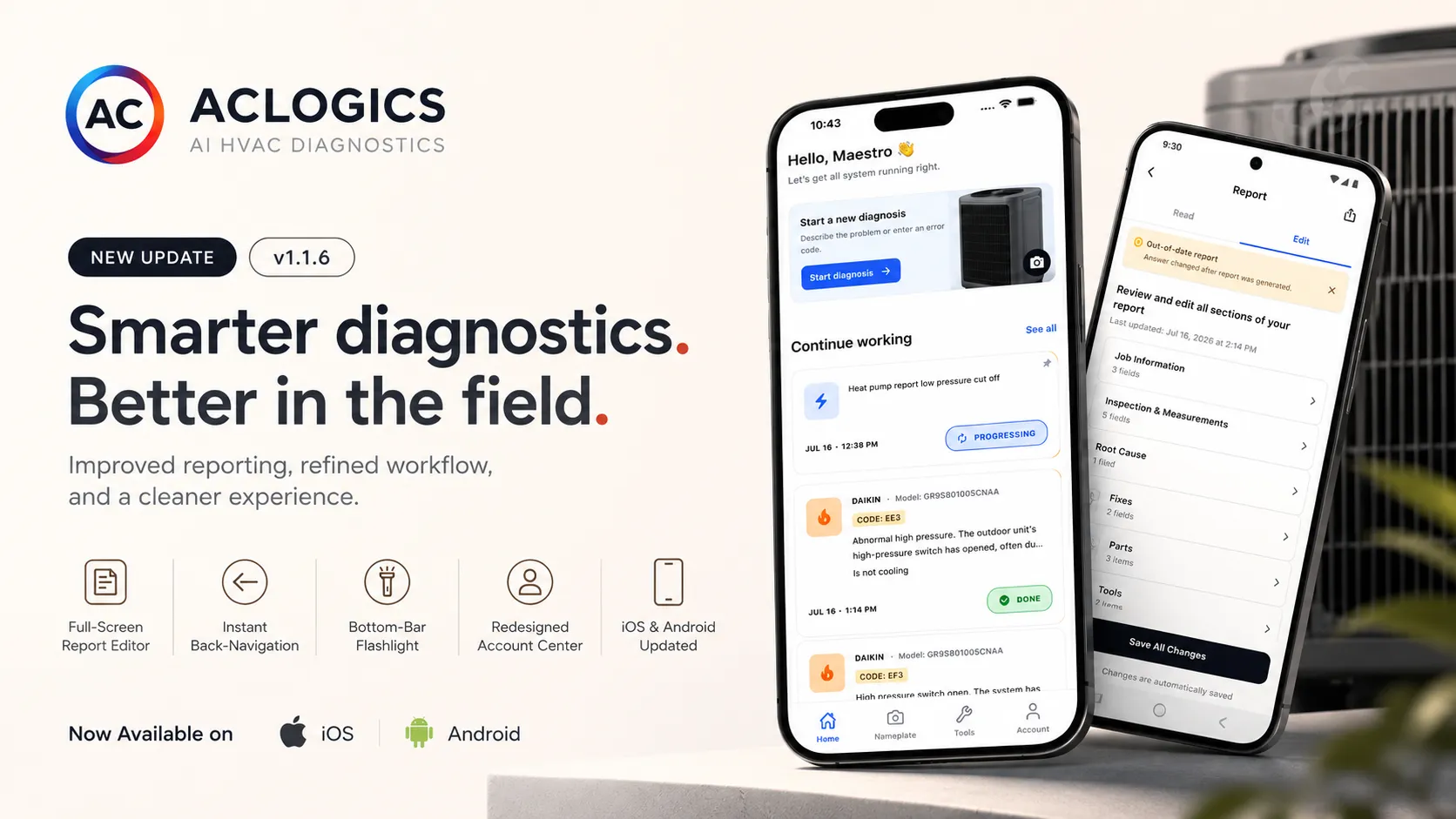
ACLogics mobile app v1.1.6 introduces a full-screen report editor, seamless keyboard avoidance, instant step back-navigation, a bottom-bar flashlight, and a cleaner Account Center layout.
AI Summary
ACLogics v1.1.6 rolls out an upgraded full-screen report editor with expiration banners, smooth keyboard handling, a cleaner minimalist UI with instant previous-step caching, bottom-bar flashlight controls that auto-shutoff in the background, camera initialization fixes for Android/Moto devices, and a redesigned Account tab in the bottom navigation.
When the heat is on and customers are waiting, HVAC technicians need tools that work at the speed of the field. You don’t need generic chatbot conversations—you need a focused system that captures measurements, guides diagnostics, and builds client-ready reports without slowing you down.
ACLogics Mobile App v1.1.6 addresses some of the most frequent feedback we’ve received from technicians working in hot attics, tight basements, and demanding job sites.
Here is a breakdown of the key features and layout fixes in this release.
1. Full-Screen Report Editing & Consistency Alerts
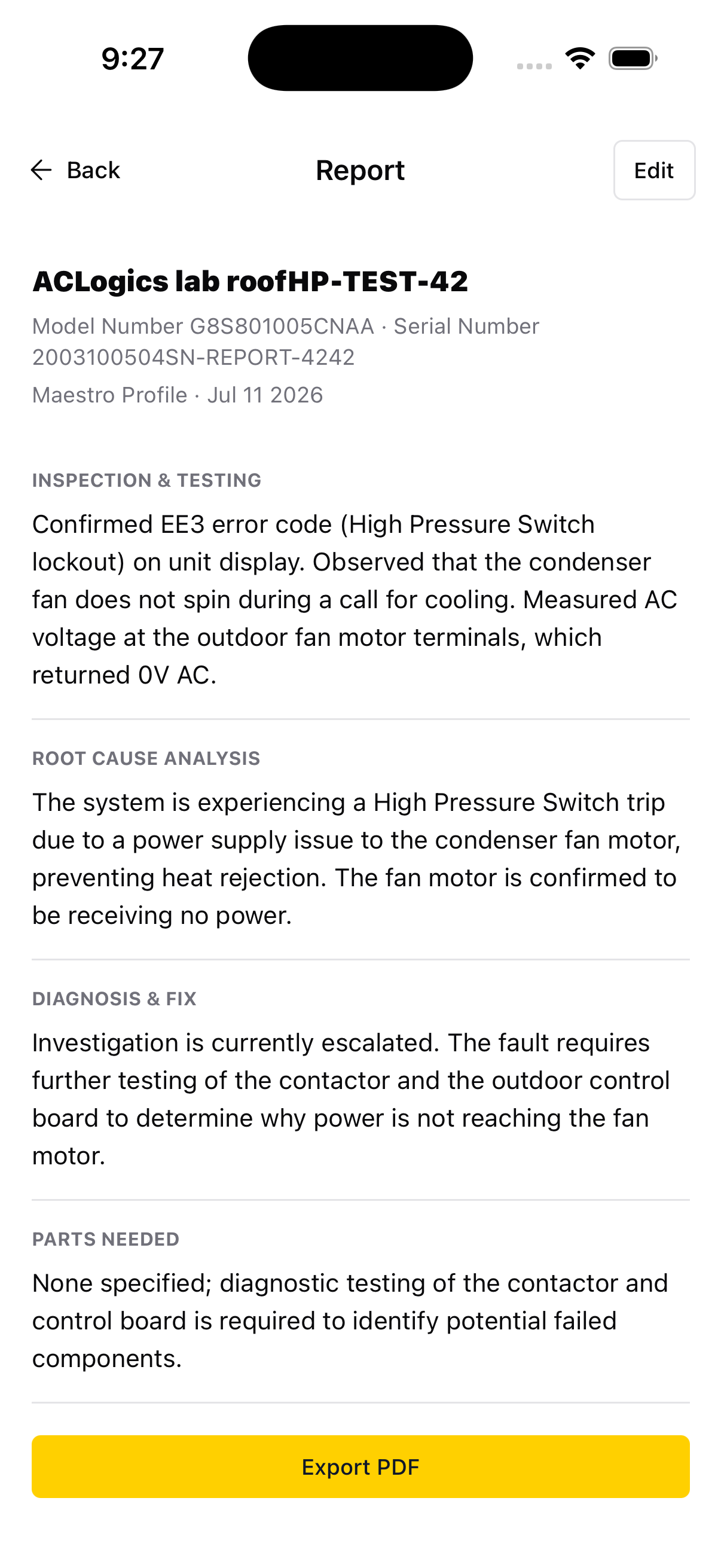
In previous versions, editing a diagnostic report took place inside a popup modal. On smaller phone screens, managing line items, test measurements, or parts lists could feel cramped.
With v1.1.6, we have upgraded the Diagnostic Report to a dedicated, full-screen page.
-
Read-Only vs. Edit Mode: By default, reports open in a polished, read-only preview format—perfect for showing directly to a customer. When you need to make changes, a simple toggle opens the edit view, allowing you to swipe through cards and update work orders, test data, root causes, and parts.
-
Out-of-Date Warnings: If you generate a report and subsequently go back to change a diagnostic answer, ACLogics now displays an “Out-of-date report” warning banner at the top of the screen. This ensures you never hand over a mismatched report to a customer.
2. Cleaner Diagnostics Layout & Instant Back-Navigation
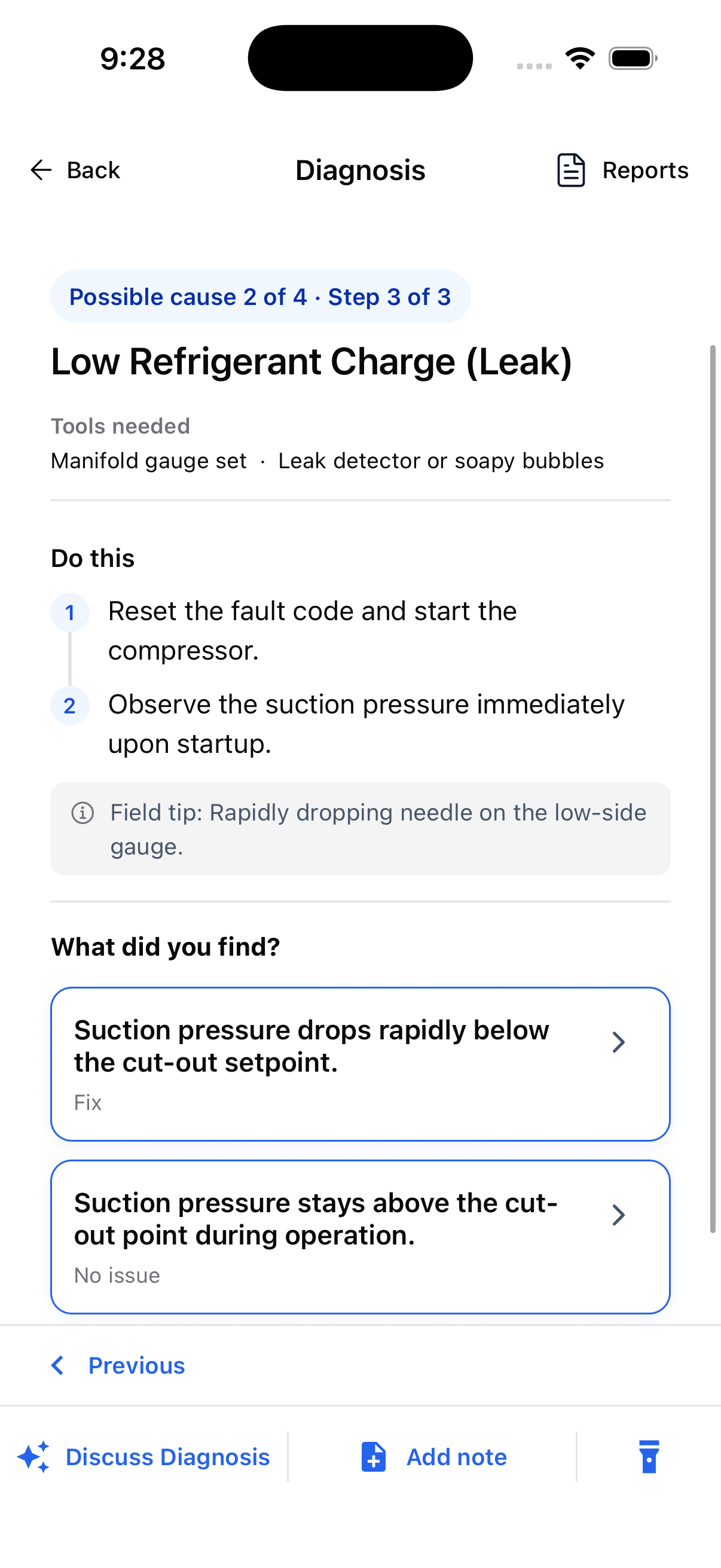
Field work requires a high-contrast, distraction-free layout, especially when working under bright sunlight or in dim spaces.
- Minimalist Visual Style: We adopted a cleaner light background, centered page headers, softer card borders, and removed repetitive UI copy. This lets you focus entirely on the diagnostic checks.
- Instant Step Caching: When you click “Previous” to review your answered steps, the page transition is now instantaneous, bypasses the network, and displays no loading spinners. If you decide not to modify your answer and click forward, it loads the next step locally with zero delay.
- Smart Keyboard Avoidance: Native keyboard controllers ensure that inputs do not block crucial buttons. When typing notes or numbers, buttons like “Save All Changes” automatically anchor directly above the on-screen keyboard, complete with a “Done” toolbar to quickly dismiss the keyboard.
3. Flashlight Integrated into Bottom Bar
Technicians frequently need a flashlight when inspecting wiring diagrams, evaporator coils, or burners. Floating sidebar icons can sometimes get in the way of diagnostic inputs.
- Clean Placement: We integrated the flashlight toggle directly into the bottom action bar (right next to “Add Note”), cleaning up screen real estate.
- Automatic Shut-Off: We kept the 15-minute battery-saver timer and added a new trigger: if you leave the diagnostic page, lock your screen, or send the app to the background, the flashlight automatically turns off. No more accidentally draining your phone battery in your pocket.
4. Layout and Flashlight Fixes for Android & Moto Devices
Users on Motorola (Moto) and several other Android devices previously reported layout stretching or screen flickering when entering a diagnostic step.
This was caused by the app initializing the underlying CameraView component in the background, even when the flashlight wasn’t turned on.
- On-Demand Mount: In v1.1.6, the camera module is only initialized and mounted when you actively tap the flashlight button.
5. Redesigned Account Center
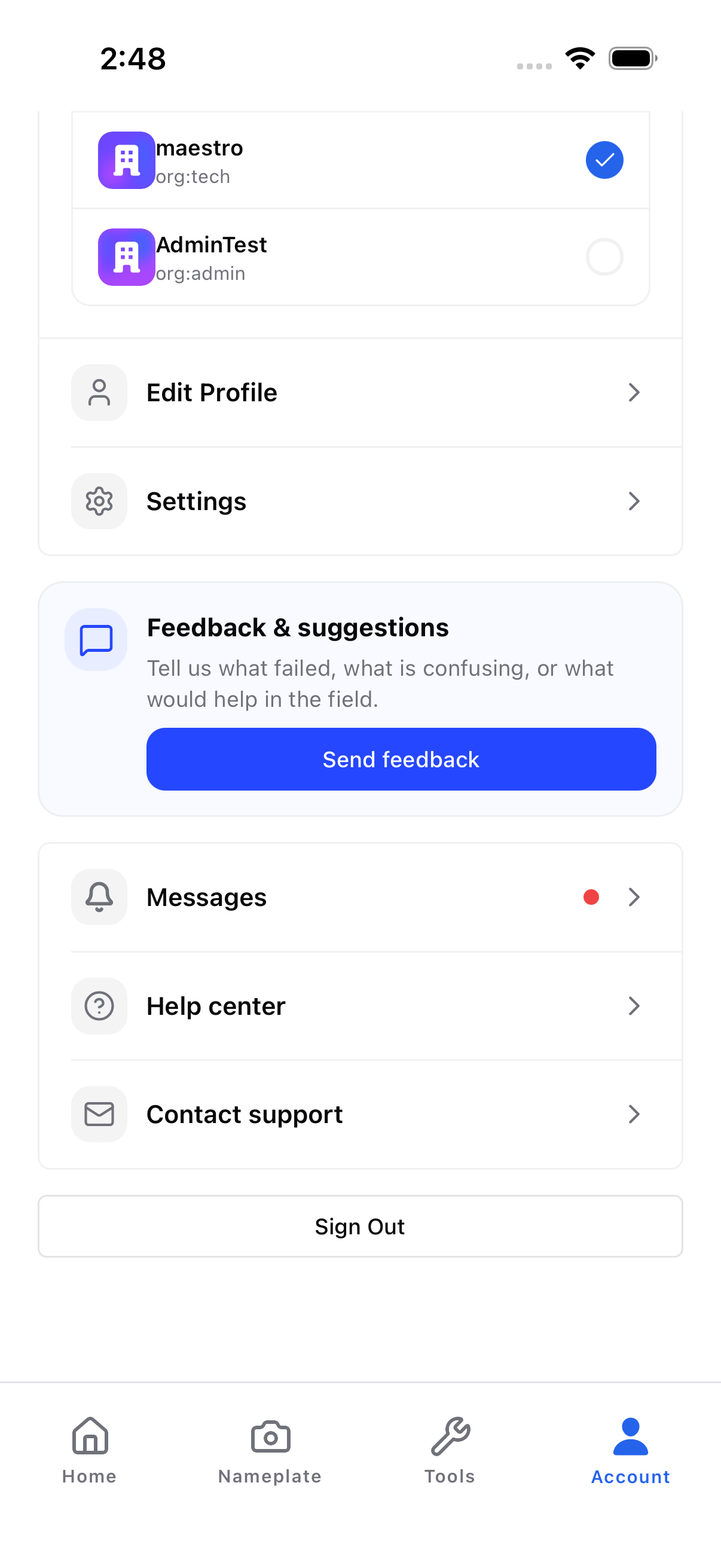
To support team management and messaging without cluttering the primary diagnostics screen, we restructured the navigation.
- Dedicated Tab: We removed header bars from the Home and History screens, moving the “Account” section into a permanent tab on the bottom navigation bar.
- Inbox Consolidation: System notifications now live under the Account Settings menu alongside the Help Center, and team listings properly display company logos or default placeholders.
How to Get the Update
ACLogics v1.1.6 is available now.
- iOS Users: Check the Apple App Store to update.
- Android Users: Download or update via the Google Play Store.
If you have feedback from your latest service call, use the “Add Note” button or reach out via “Contact Support” in the new Account tab.