Diagnosis
Ask follow-up questions with Step Chat
Explain how Step Chat works inside a diagnosis, what to ask, why it can be disabled, and how token limits apply.
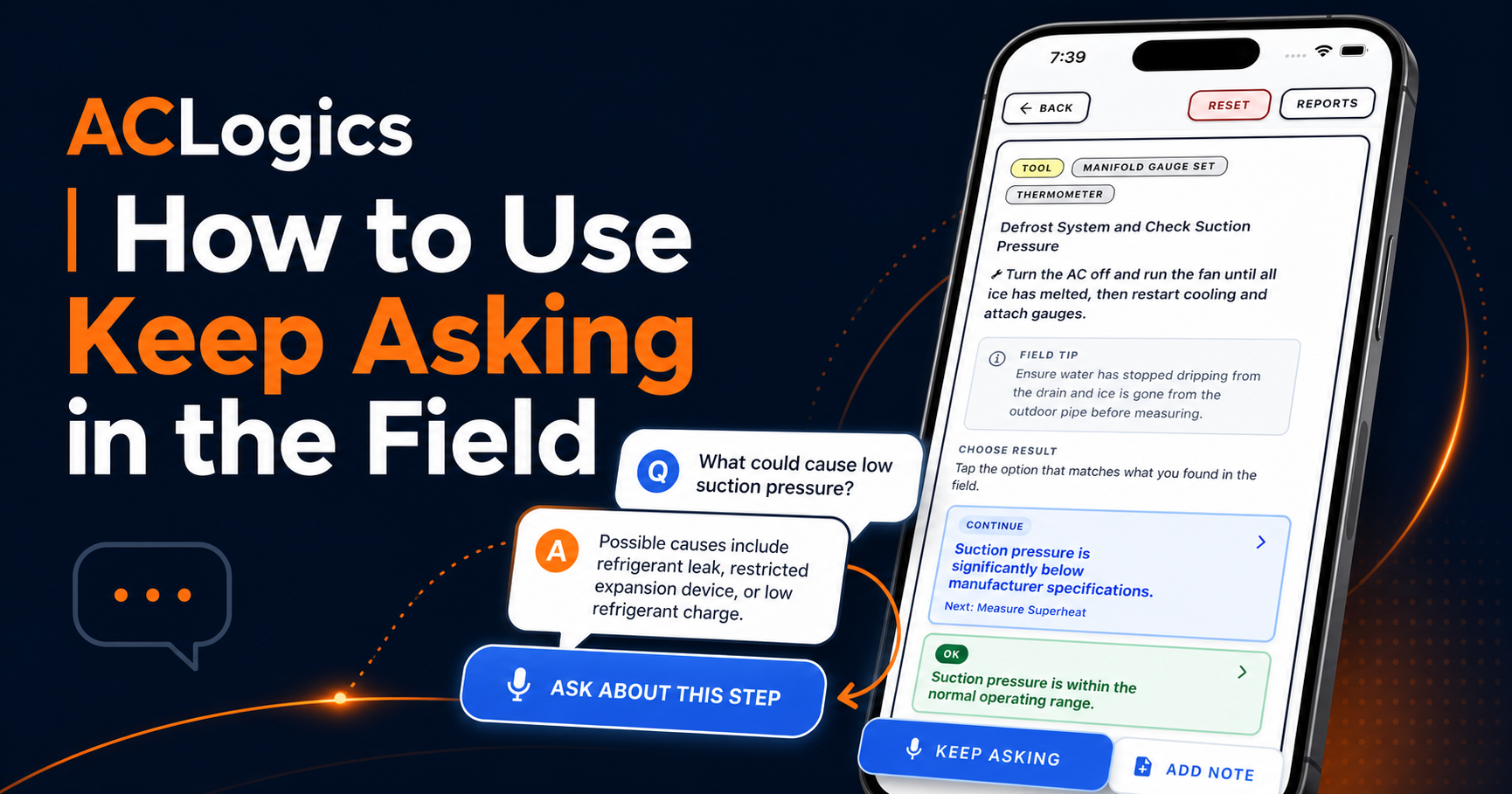
Use Step Chat to get deep insights, troubleshooting tips, and verification steps tailored to your specific diagnosis. It’s like having a senior technician in your pocket, ready to help you navigate complex HVAC issues.
Video walkthrough
How to access Step Chat
You can find the Step Chat interface within any active diagnosis. Look for the Step Chat input field or action button at the bottom of the guided diagnosis screen.
How to Use Step Chat
- Open an Active Diagnosis: Navigate to any job in progress.
- Locate the Step Chat Button: Tap the “Step Chat” button at the bottom of the guided diagnosis screen.
- Submit Your Question:
- Type: Enter your specific question about a reading, error code, or component.
- Voice: Tap the microphone icon to speak your question (requires internet and microphone permission).
- Review the Insights: Step Chat will analyze the current diagnosis context and provide a detailed response to guide your next steps.
[!TIP] Be Specific! While Step Chat knows your diagnosis context, including exact measurements or observed symptoms in your question helps produce the most accurate advice.
Frequently Asked Questions
What kinds of follow-up questions should I ask?
You can ask about anything related to the system you’re working on. Great examples include:
- “How should I confirm this pressure reading?”
- “What would make this error code intermittent?”
- “What should I check before replacing this part?”
- “Is this voltage within normal range for this board?”
Why is Step Chat disabled?
If the Step Chat field is grayed out, it might be due to:
- Offline Mode: Step Chat requires an active internet connection.
- Service Unavailability: The ACLogics AI service may be temporarily down.
- Request in Progress: A previous question is still being processed.
- Token Balance: You do not have enough available tokens for the request.
Why did Step Chat fail to answer?
Failure can occur due to connection drops, service interruptions, or complex requests. If it fails:
- Check your internet connection.
- Shorten your question to focus on the most relevant details.
- Retry the request. If it persists, contact ACLogics support.
How do token limits affect Step Chat?
AI actions like diagnosis generation and Step Chat consume diagnostic tokens:
- Free: 50,000 permanent tokens on registration (never expire)
- Pro: 500,000 tokens added every month; unused Pro tokens roll over while Pro is active
- Team and Insight: unlimited tokens on every AI service, for every member
Longer, more complex requests use more tokens. Tokens are charged only for successful steps; failed attempts and retries are not charged. If you exhaust your balance on Free or Pro, buy an in-app $6.99 / 100,000 permanent-token refill — the same amount on every plan — or, on Pro, wait for the next monthly credit on the 1st.
Can I use Step Chat while offline?
No. Step Chat relies on our cloud-based intelligence service to provide accurate, real-time advice, which requires a stable internet connection.
Need support?
Email ACLogics with the issue details.
Include the account email, device model, app version if known, screenshots, and the exact message shown.