Diagnosis
Edit a report, rewrite it by instruction, and tick off repairs
Correct any section of a diagnosis report, ask for a rewrite in your own words, mark repairs done on a later visit, and clear an outdated-report warning.
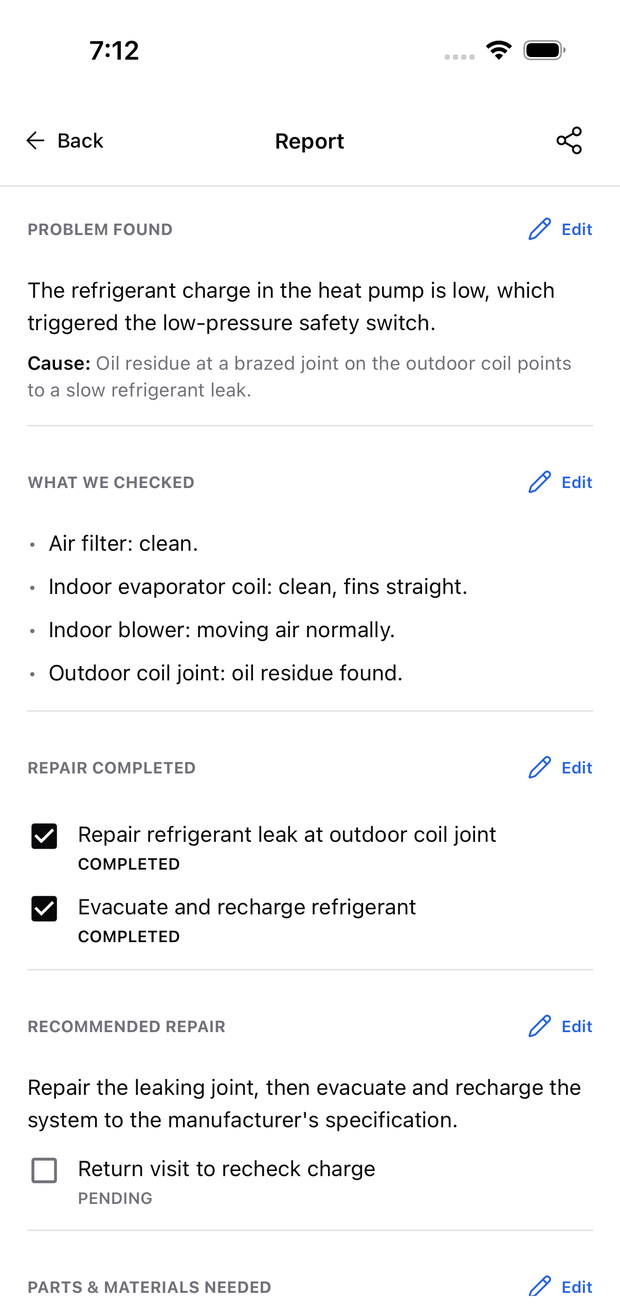
A generated report is a starting point. Every section can be corrected before you hand it to the customer.
Edit a section yourself
- Open the report from Job Documents.
- Select Edit next to the section you want to change.
- Change the wording and save.
Each section — Problem Found, What We Checked, Repair Completed, Recommended Repair, Parts & Materials Needed — has its own Edit control, so you only open the part you are fixing.
Edits save on the device first, so they work with no signal and upload when you are back online. If Edit does nothing, close and reopen the report and check you are signed in to the account that owns the diagnosis.
Ask for a rewrite instead of typing
If it is easier to say what is wrong than to retype the paragraph, describe the change — for example “make it shorter” or “mention the capacitor was replaced” — and the section is rewritten for you. You can dictate the instruction instead of typing it.
The rewrite is shown to you before anything is saved. Read it against what you actually did on the job, then save it or discard it. Instructions are limited to 1,000 characters, and a rewrite uses tokens the same way generating a report does.
[!IMPORTANT] A rewrite changes wording, not facts. It cannot know anything you did not record. Check measurements, part numbers, and model numbers yourself before sharing the report.
Tick off repairs on a later visit
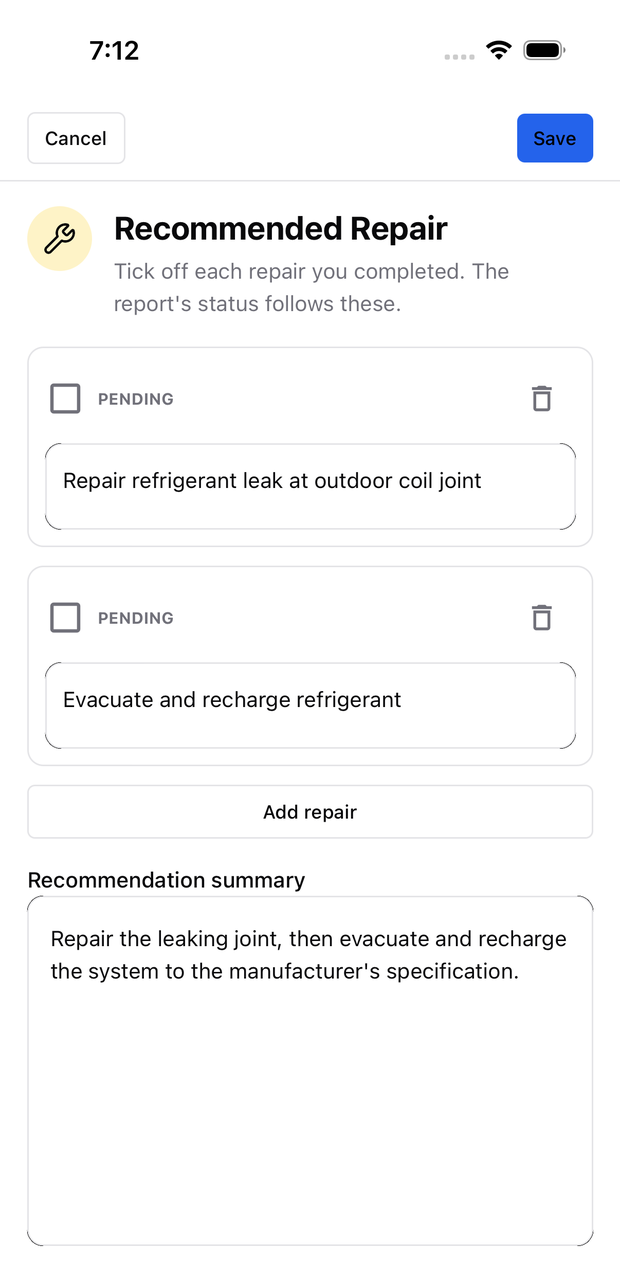
Open the repair section, tick the repairs you completed, and save. The report’s headings and summaries update to match — a repair you ticked moves under Repair Completed, and anything still open stays under Recommended Repair.
You do not need to regenerate the report to record work finished on a second visit, and it costs no tokens. If you typed your own summary over a section, your wording is kept exactly as you wrote it.
Use Add repair for work that was not in the original recommendation.
Clear an outdated-report warning
An out-of-date flag means the diagnosis changed after the report was created.
- Look at what changed in the diagnosis steps and notes.
- Compare each report section against the latest findings.
- Correct the affected sections, or Regenerate if the diagnosis changed substantially.
- Export only once the report matches the job.
Reports made before this warning existed are never flagged as outdated.
Related
Need support?
Email ACLogics with the issue details.
Include the account email, device model, app version if known, screenshots, and the exact message shown.