Diagnosis
Job Documents: the report, the invoice, and your job records
Open the Job Documents hub for a job, understand what each card means, and find your job notes and the questions you asked.
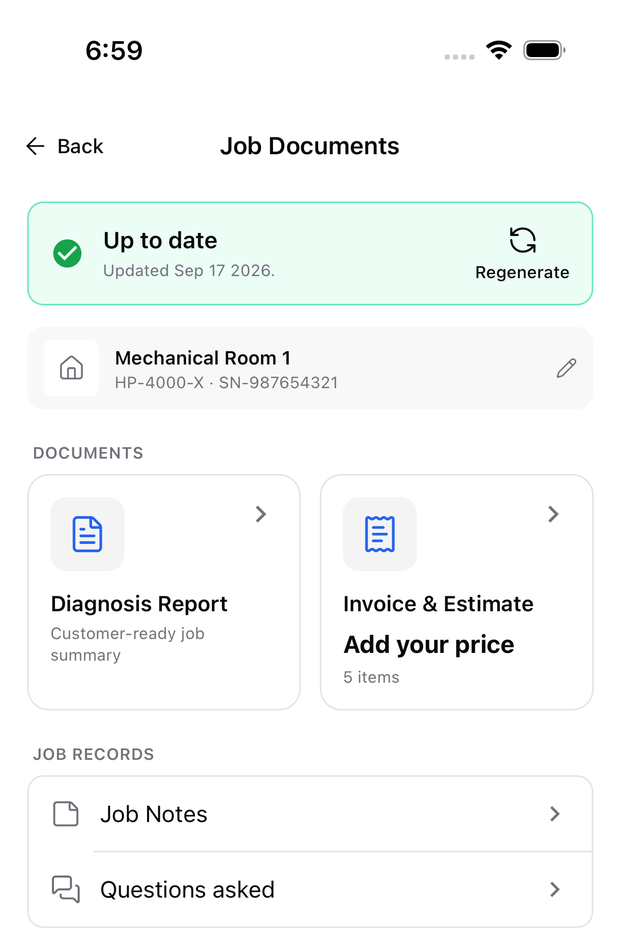
When a diagnosis is finished, everything you hand to the customer lives on one screen. Open the diagnosis and select Job Documents.
What is on the hub
| On the hub | What it does |
|---|---|
| Status banner | Tells you whether the report is up to date, and gives you Regenerate. |
| Site info row | Location, model, and serial number. Tap the pencil to change them. |
| Diagnosis Report | The customer-ready summary of the job. |
| Invoice & Estimate | Your pricing for the job, and the amount if you have entered one. |
| Job Notes | Every step note and the task note recorded on this job. |
| Questions asked | The follow-up questions you asked during the diagnosis. |
The report and the invoice share one header with tabs, so once you are inside either document you can switch to the other in one tap.
If the job has no documents yet
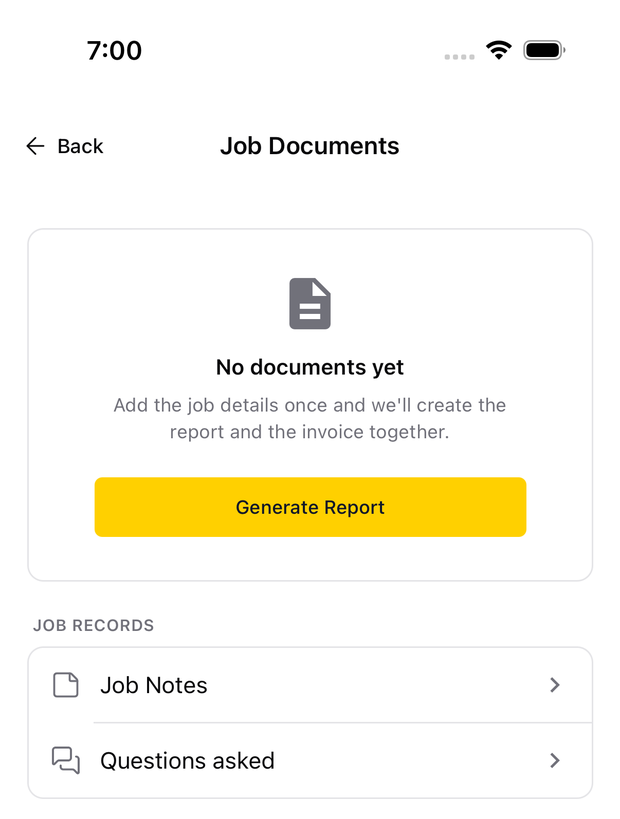
Select Generate Report, fill in the job details once, and both the report and the invoice are created from them. See Enter the job details once.
Generating a report needs an internet connection. Once a report exists you can read it, edit it, and export its PDF without service.
Respond to the status banner
- Up to date — the report matches the diagnosis. Nothing to do.
- Out of date — the diagnosis changed after the report was made. Review what changed, then either correct the affected sections or Regenerate.
Tapping Generate or Regenerate opens the report screen straight away and fills it in when generation finishes. You do not have to wait on the hub, and tapping again while a report is being generated does nothing and is never charged twice.
Find a note or a question again
Select Job Notes to see every note recorded on the job, or Questions asked to look back through the follow-up questions from the diagnosis. Tapping a note takes you back to the step it belongs to, so you can check the measurement it came from.
Related
Need support?
Email ACLogics with the issue details.
Include the account email, device model, app version if known, screenshots, and the exact message shown.