Diagnosis
Enter the job details once with Site Info
Set the location, model, serial number, customer name, and report language that both the report and the invoice print from.
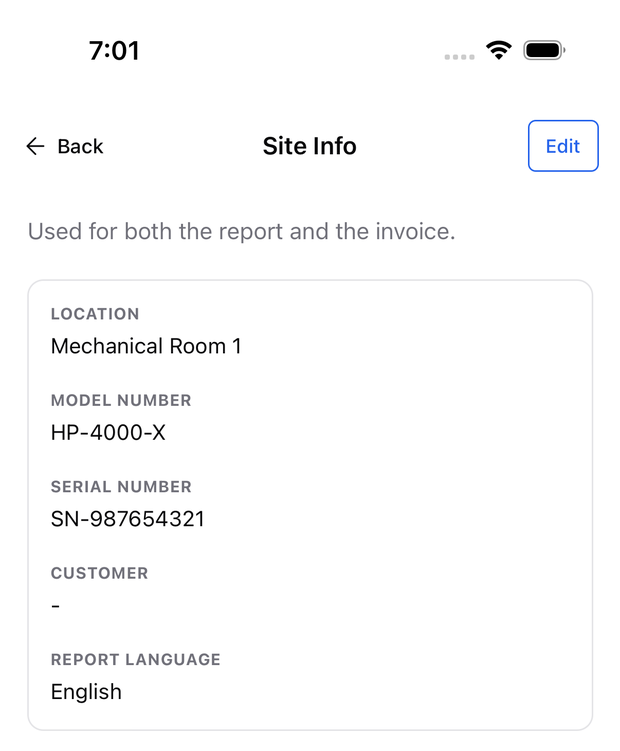
Site Info holds the job details that appear on both documents. Enter them once and the diagnosis report and the invoice both print from them.
Open and edit Site Info
- Open the diagnosis and select Job Documents.
- Tap the site info row near the top of the hub, or the pencil on it.
- Select Edit, fill in the fields, and save.
What each field is for
| Field | Where it shows up |
|---|---|
| Location | The service address line on the report and the invoice PDF. Required. |
| Model number | The equipment block on both documents. |
| Serial number | The equipment block on both documents. |
| Customer | The bill-to line on the invoice PDF. |
| Report language | The language both PDFs are printed in. |
If you try to save without a location, the app asks you for one — the PDFs need a service address.
Choose the report language
The report language is separate from the language the app itself is set to. Set it to the language your customer reads, and both the report PDF and the invoice PDF print in it.
Available report languages: English, Simplified Chinese, Spanish, French, Portuguese, Russian, and Vietnamese.
[!IMPORTANT] Pick the language before you generate the report. To change it afterwards, set the new language in Site Info and regenerate the report.
When you regenerate, the app reuses the language you picked last time, so you do not have to set it again on every visit.
Changing the details later
You can edit Site Info at any time. The invoice PDF and the report PDF pick up the new values the next time you export them — you do not need to regenerate the report just to correct an address or a serial number.
Related
Need support?
Email ACLogics with the issue details.
Include the account email, device model, app version if known, screenshots, and the exact message shown.